Quick answer: how to print a 2x2 photo
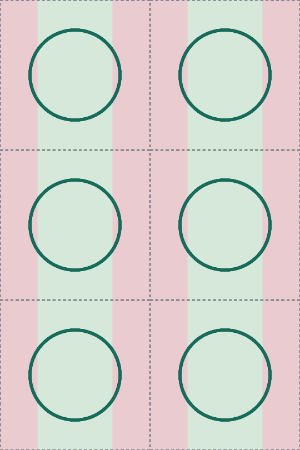
Use the tool above to crop one square photo, then download the 4 x 6 print sheet. The sheet contains six 2 x 2 copies on a 1200 x 1800 pixel canvas with 300 PPI metadata. When you print, choose a true 4 x 6 photo size and turn off settings that crop, fit, shrink or enlarge the image.
How to print a 2x2 photo step by step
Upload the original photo and position it inside the square crop. Avoid stretching a rectangular photo into a square because that changes facial proportions.
Choose the mode that matches your use. For a general 2x2 photo, use General. For U.S. passport or visa preparation, use the matching mode and review the official requirements before submitting.
Check the local warnings for resolution, brightness and possible blur. If zooming leaves fewer than 600 source pixels in the crop, reduce the zoom or start from a larger original.
Select Download 4x6 print sheet. The generated JPEG is 1200 x 1800 pixels with 300 PPI metadata and places the same 600 x 600 crop in a 2-column by 3-row grid.
At the printer or photo lab, select a real 4 x 6 output size. Disable auto-crop, fit-to-page, shrink-to-fit or any similar option that changes the outside dimensions.
Before cutting, measure one cell. It should be 2 inches by 2 inches. If it is not, fix the print settings and print again rather than compensating with the scissors.
Why a 4x6 sheet fits six 2x2 photos
The layout is exact: a 4-inch width holds two 2-inch photos, and a 6-inch height holds three 2-inch photos. That produces a 2 by 3 grid with six copies. At 300 pixels per inch, a 2-inch square is 600 x 600 pixels and the full 4 x 6 canvas is 1200 x 1800 pixels.
This is why a 4 x 6 sheet is a useful bridge between a digital 2x2 photo and common photo-printing workflows. The important part is preserving the full 4 x 6 image instead of letting the printer crop or rescale it.
Choose where to print your 2x2 photo
| Option | Best for | Main thing to check |
|---|---|---|
| Retail photo lab | Convenient photo-paper prints | Make sure the order preview preserves the entire 4 x 6 image and does not crop the edges. |
| Home photo printer | Immediate prints and repeat testing | Select 4 x 6 paper, use an appropriate quality setting and disable fit-to-page scaling. |
| Professional passport-photo service | Help with capture, lighting and cutting | Confirm the service follows the current requirements for the document you are submitting. |
See the detailed where to print a 2x2 photo guide for a fuller comparison.
Print settings that keep the photo at actual size
| Setting | Recommended choice | Why |
|---|---|---|
| Paper or print size | 4 x 6 inches | The downloaded sheet is designed for this outside size. |
| Scaling | 100% or actual size | Prevents every 2 x 2 cell from becoming larger or smaller. |
| Automatic crop | Off | Prevents the printer from trimming the outer edges of the sheet. |
| Fit to page | Off | Fit modes can silently rescale the image. |
| Orientation | Match the 4 x 6 preview | Rotation itself is fine, but the full image must remain visible. |
| Quality | Photo or high quality when appropriate | Reduces visible printer dots, banding and softness. |
If the printed 2x2 photo is the wrong size
| Problem | Likely cause | Fix |
|---|---|---|
| Each photo is larger than 2 inches | The print service enlarged or cropped the 4 x 6 image. | Turn off auto-crop or zoom-to-fill and reprint the full sheet. |
| Each photo is smaller than 2 inches | The printer used fit-to-page or added a scaling margin. | Use actual size or a true 4 x 6 photo-print setting. |
| Edges are missing | A borderless workflow overscanned the image. | Choose a setting that preserves the whole image, or use a service that shows the full 4 x 6 preview. |
| The face looks soft | The source crop did not contain enough real pixels or the print quality was low. | Use a larger original, reduce crop zoom and select a higher-quality print mode. |
| The file looks right but the paper is wrong | Pixel dimensions alone do not force physical size. | Verify the print is actually 4 x 6 inches and measure the finished 2 x 2 cell. |
Paper quality for U.S. passport photos
If the finished photo is for a U.S. passport submitted with a paper form, the U.S. Department of State currently says to print on matte or glossy photo-quality paper. The photo should be high resolution, sharp and free of visible printer dots. The same official guidance requires a 2 x 2 inch photo and a head height of about 25 to 35 mm from chin to top of head.
Check the current U.S. Department of State passport photo requirements before printing for an application.
Cutting the six copies cleanly
Measure first, then cut along the boundaries between the six square cells. A ruler and a straight cutting tool can produce more consistent edges than freehand scissors. If the receiving authority has its own cutting, attachment or paper instructions, follow those instructions instead.
Do not try to rescue an incorrectly scaled print by cutting inside or outside the intended cell. The correct fix is to reprint at the right scale so the complete photo itself measures 2 x 2 inches.
Use the receiving authority as the final source
This tool controls crop geometry and print layout. It does not guarantee that the underlying photo meets every rule for a passport, visa or other document. Requirements can change, so verify the current rules for the exact document and application process you are using.